Contact us
 Customer Area
 Visit LWS
Rate this article :
4/5 | 25 opinion
This article was useful to you ?
 Yes
Yes
 No
No
 Article read
145583 once
Article read
145583 once Merci ! N'hésitez pas à
poser des questions sur nos documentations si vous souhaitez plus d'informations et nous aider à les
améliorer.
Merci ! N'hésitez pas à
poser des questions sur nos documentations si vous souhaitez plus d'informations et nous aider à les
améliorer.Vous avez noté 0 étoile(s)



Sommaire
Procédure
This documentation explains how to put your website files online on your LWS web hosting using FTP software.
You will learn how to retrieve your FTP identifiers, configure your connection software, transfer your site files to your hosting and check that your site is displayed correctly online.
This documentation is aimed at anyone who has web hosting and wants to manually publish their website files using FTP.
It applies regardless of your control panel, as long as you have your FTP settings.
The publication procedure is then the same in principle, whatever control panel you use. Only the method for retrieving your FTP identifiers and settings changes depending on the interface.
Before you put your site online, make sure you have the following:
Recommended software
The software recommended in this documentation is FileZilla, as it is widely used and easy to learn.
Popular alternatives
FTP is a method of transferring files between your computer and your web hosting.
For example, you can :
In practice, you prepare your site on your computer, then use FTP software to send it to your hosting.
Before you can publish your site, you need to retrieve the connection information for your FTP space.
These parameters are as follows
The way to find these parameters depends on your control panel.
Documentation adapted to your panel
If your domain name does not yet point to your hosting, you may need to use the server's IP address instead of the domain name for the FTP connection.
Before going online, check that your site files are ready on your computer.
Depending on your site, this could be :
index.html file and its associated folders ;index.php fileImportant check
Your home page should generally be named index.html or index.php (see default.aspx for ASP sites).
If your home page has another name, your site may not be displayed correctly, even if the files have been transferred correctly.
Tip
Place all your site files in a clear folder on your computer before you start.
This will prevent you from sending unnecessary or incomplete files by mistake.
Install the FTP software of your choice on your computer:
Once the installation is complete, open the software.
FileZilla is a well-known freeware application for putting websites online using FTP.
It allows you to connect quickly to a hosting service and easily transfer files between your computer and the server.
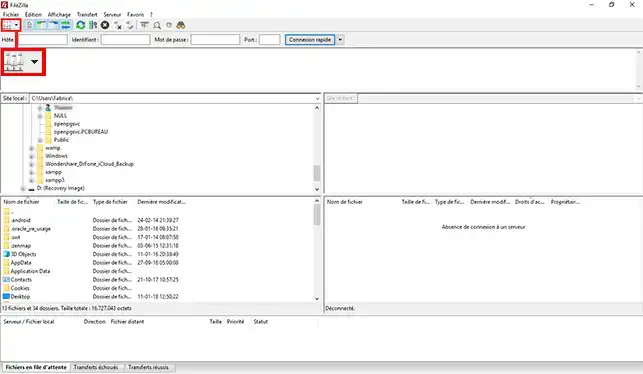
1. In FileZilla, open the Site Manager at the top left.
2. Click on New Site.
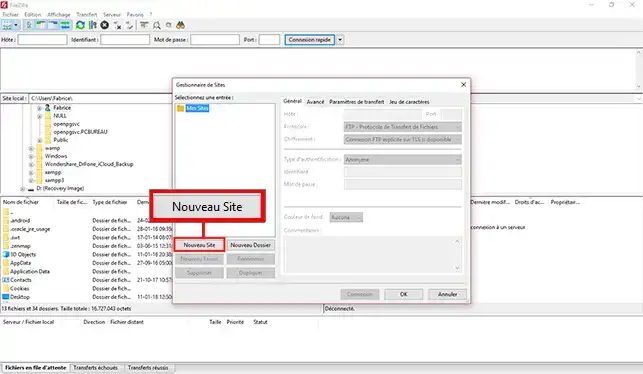
Give it a simple name, for example :
3. Then fill in the fields with the information retrieved from your control panel.
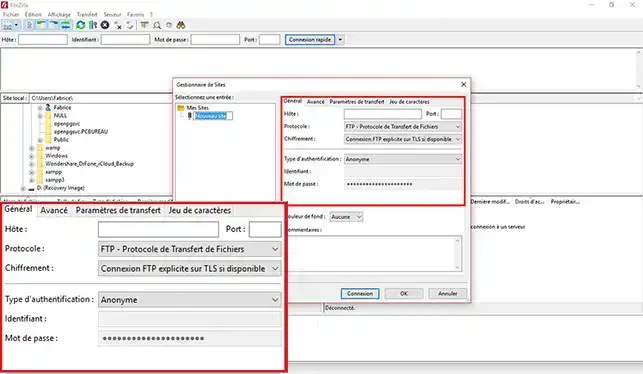
ftp.yourdomain.tld or the server's IP address[
4. Click on Connection according to the desired behaviour.
5. When connecting for the first time, a window related to the security certificate may appear.
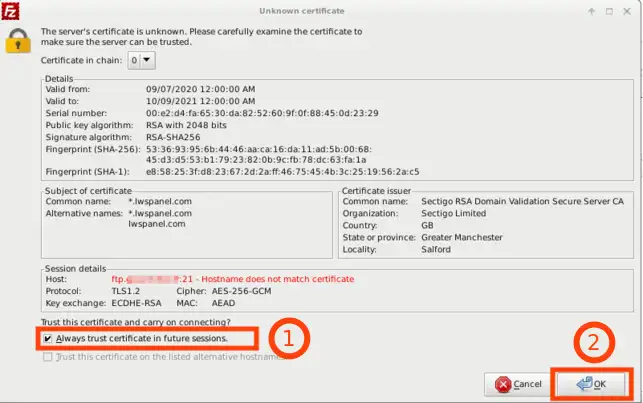
In this case, confirm the connection if the information corresponds to your server.
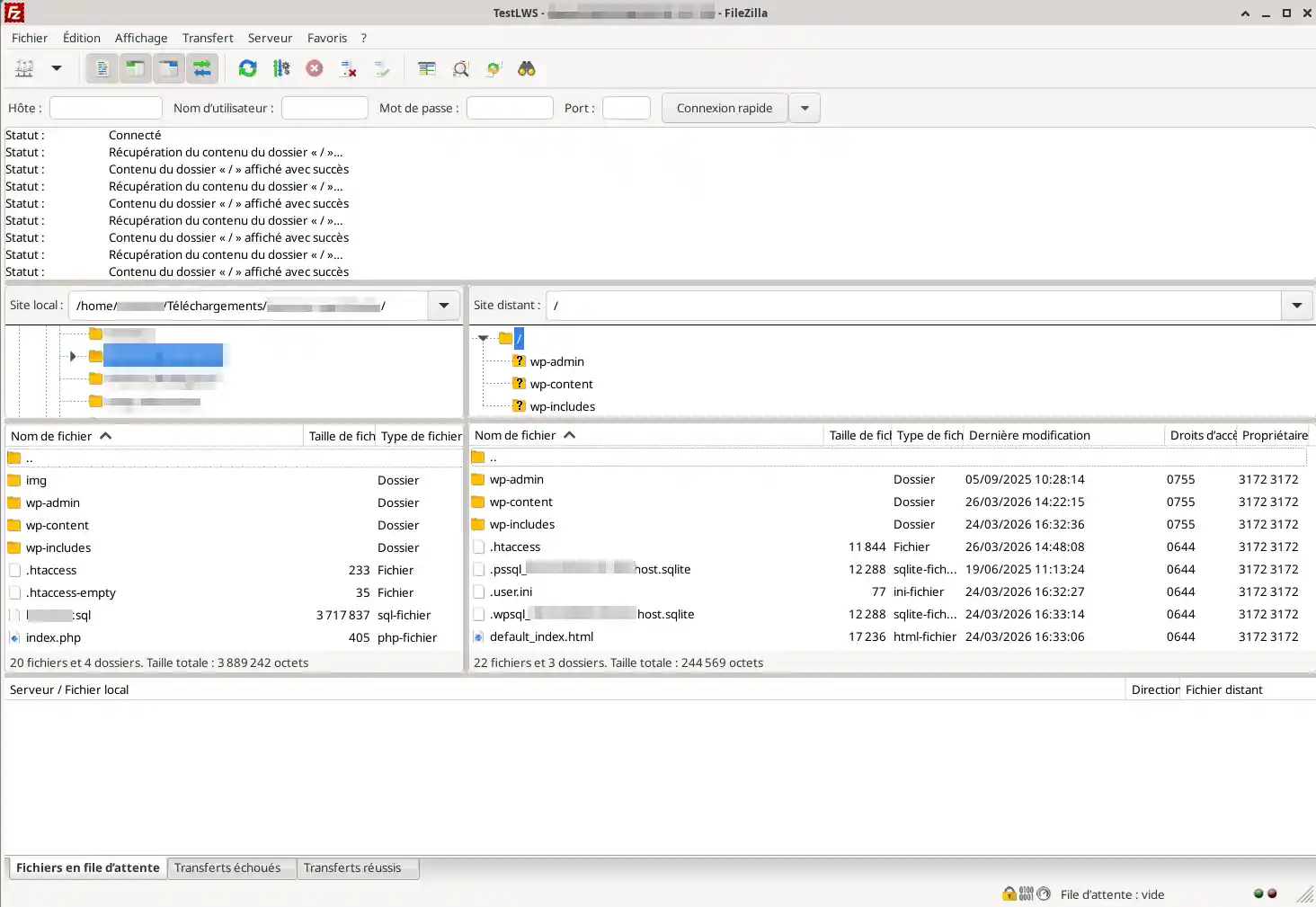
Once connected, FileZilla generally displays two main areas:
To put your site online, you need to send the files from the left to the right.
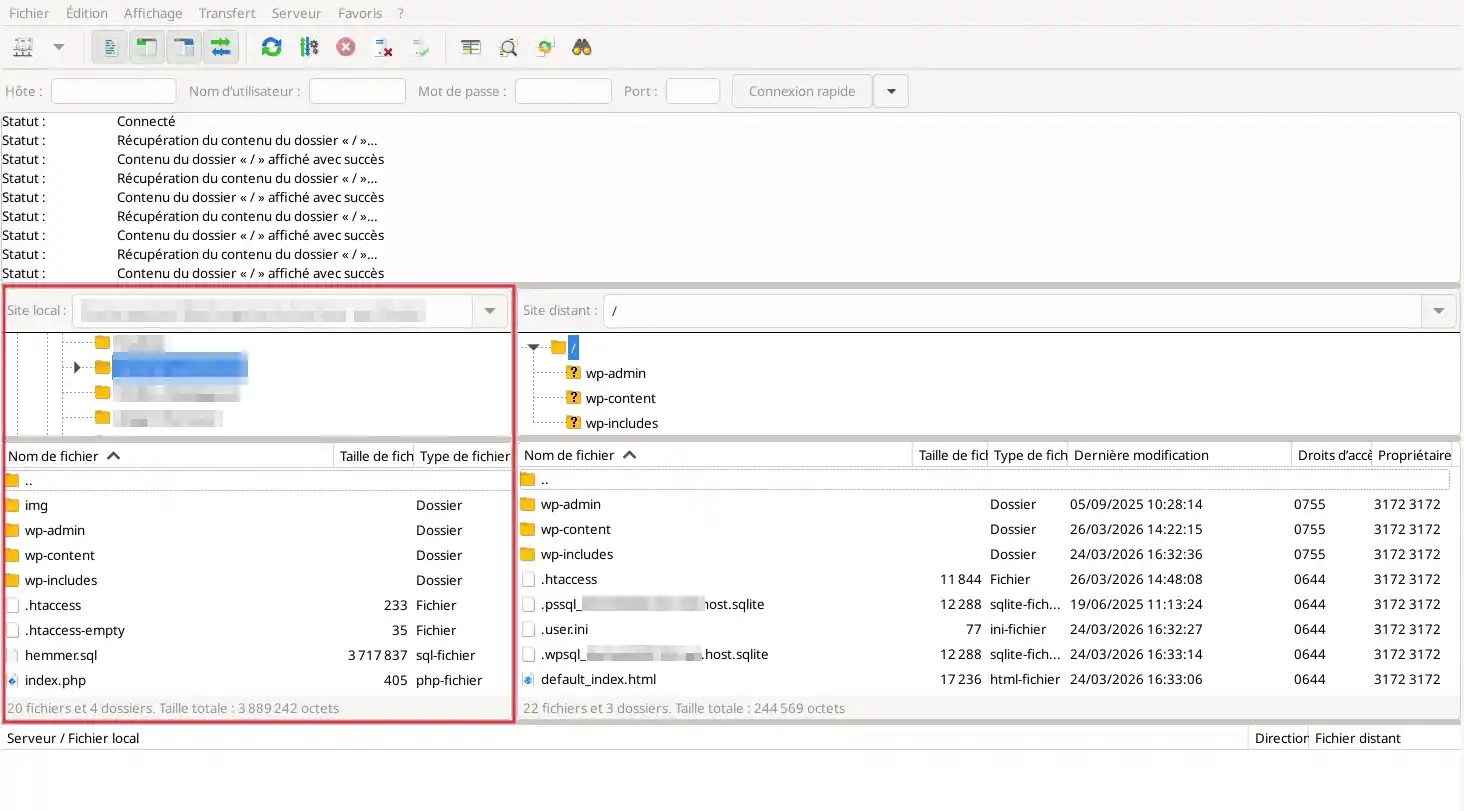
1. On the left-hand side of FileZilla, open the folder containing your site files.
2. On the right, open the destination folder for your site on the hosting.
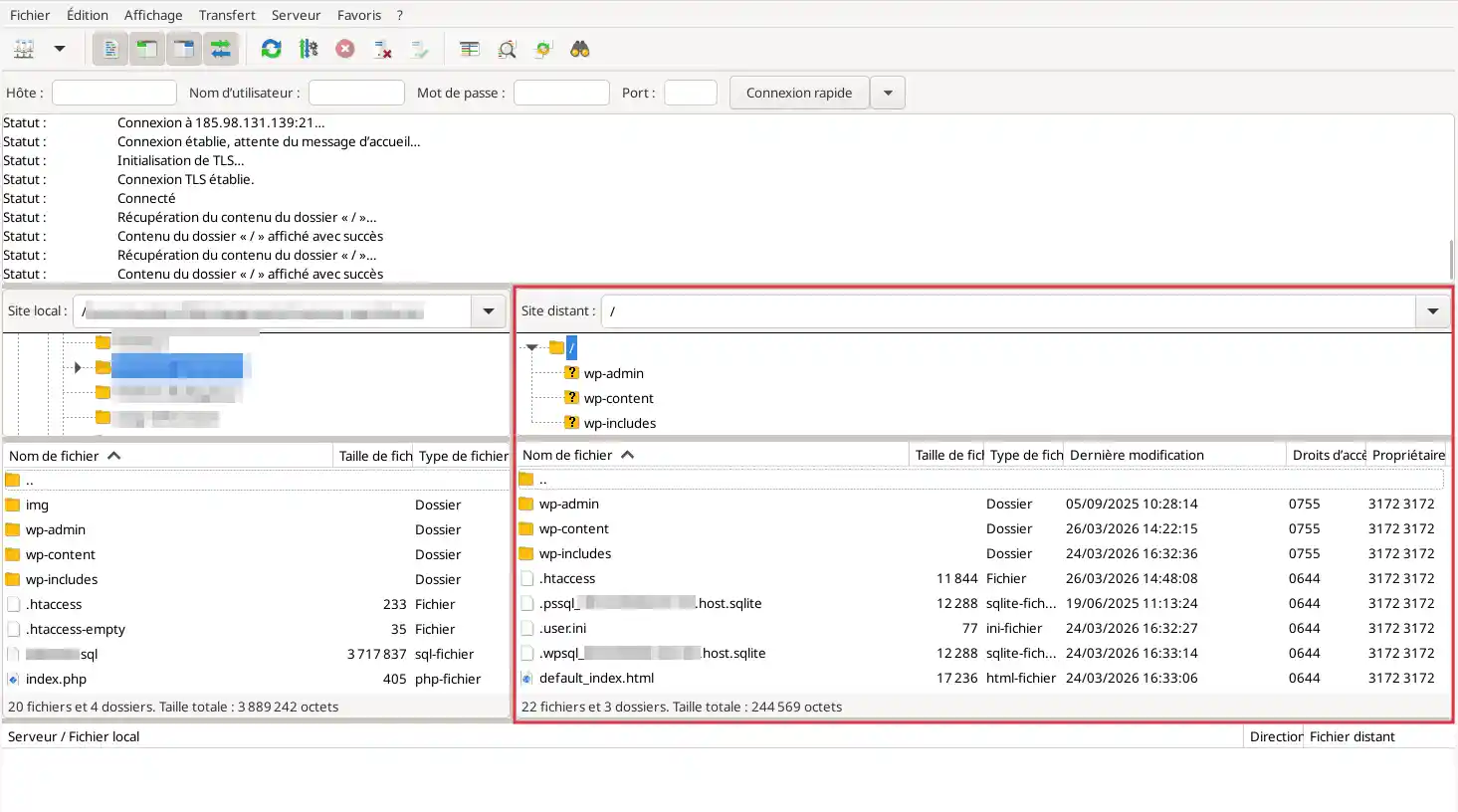
You must publish the files in the web folder intended for displaying the site.
The exact name of this folder may vary depending on the hosting or control panel. It is for this very reason that the recovery of parameters and the identification of the correct location should be checked in the documentation for your environment.
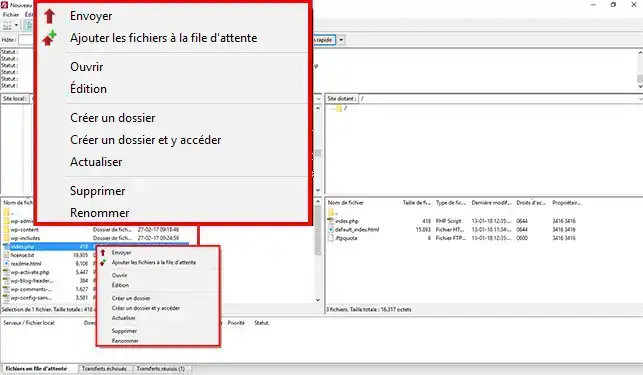
3. Select your site files on the left, then :
4. Wait for the transfer
Wait for all the files to be transferred.
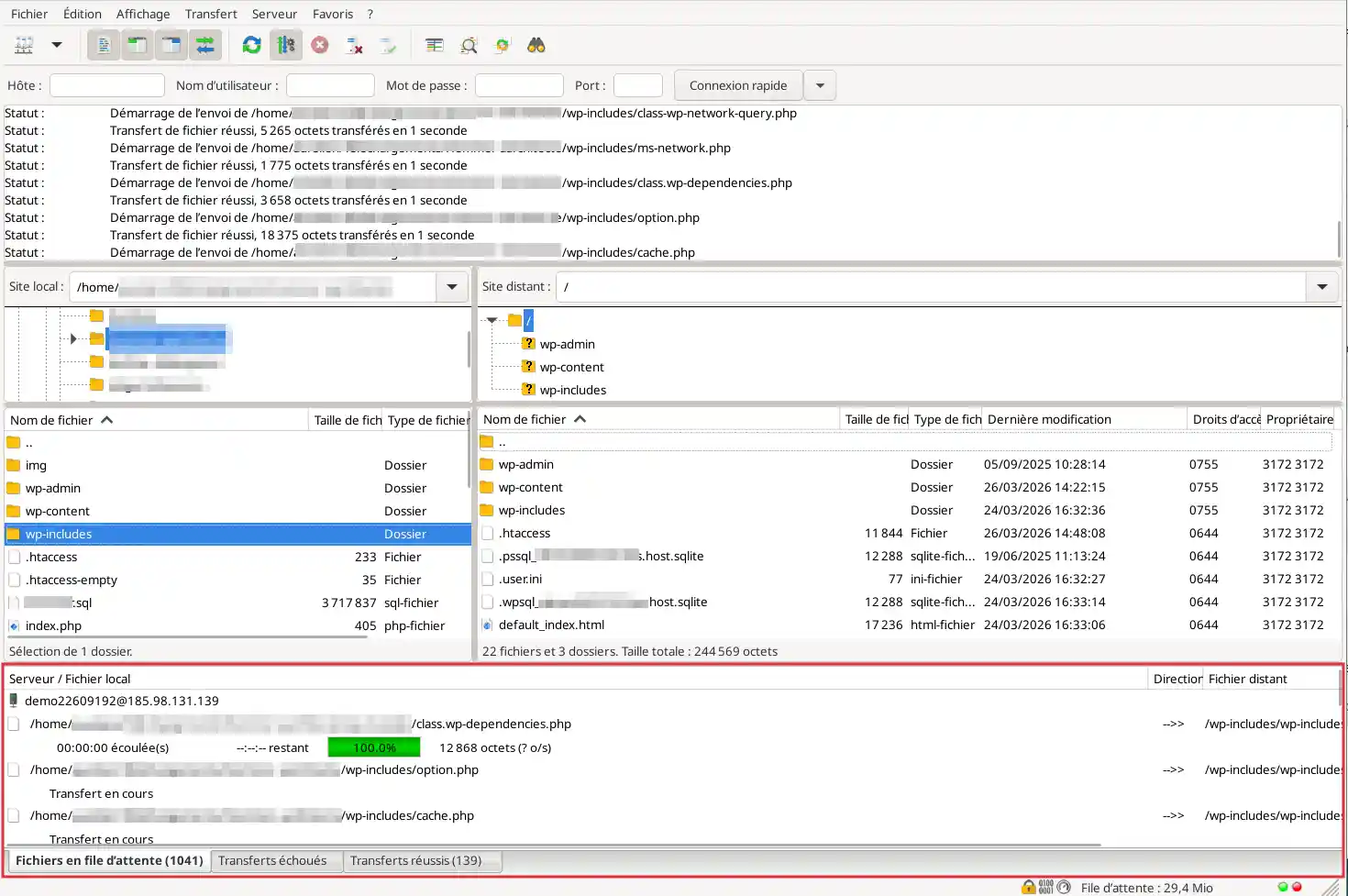
The time required depends on :
5. Check that there are no errors
Once the transfer is complete, check that the files appear on the right-hand side and that no blocking errors are displayed in the transfer queue.
If your hosting already contains a default site or page, you may need to replace the files that are already there.
Before replacing files
We strongly recommend that you :
LWS also has documentation dedicated to backing up web files, which makes it an appropriate step to take before making any major changes.
If FileZilla asks for confirmation
When FileZilla detects that a file already exists, it may ask you if you want to :
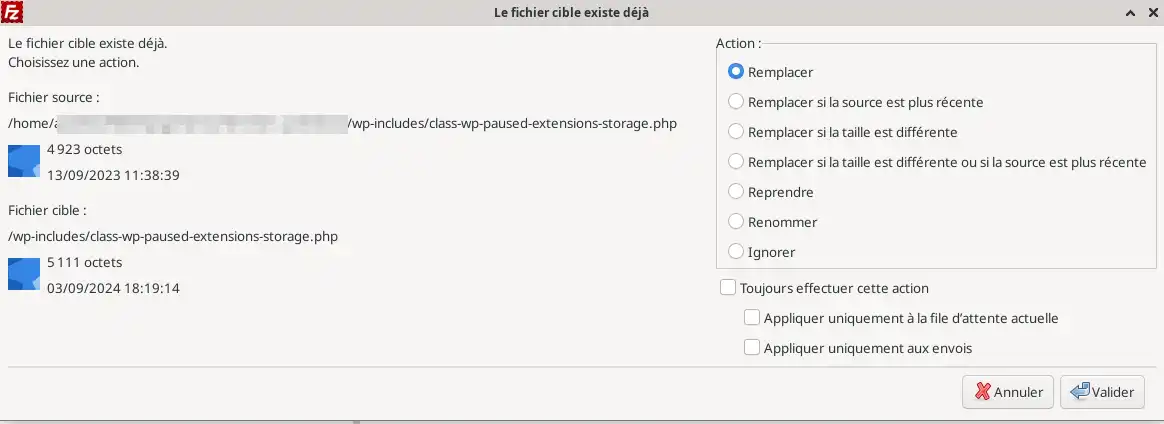
Read the window carefully before confirming.
Cyberduck is a popular alternative to FileZilla.
Its interface is often perceived as simpler, particularly for users who want to get straight to the point.
1. Launch the software.
2. Click on the button to open a new connection.
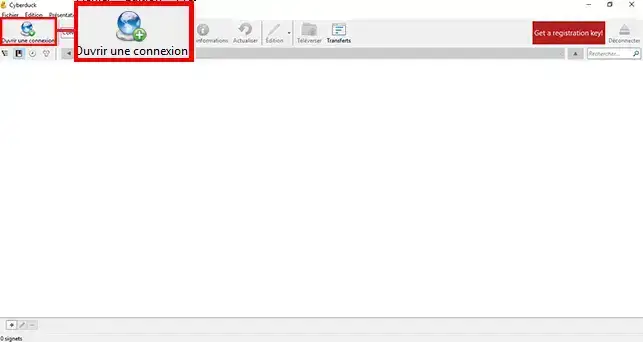
3. Fill in the FTP parameters (1)
Specify :
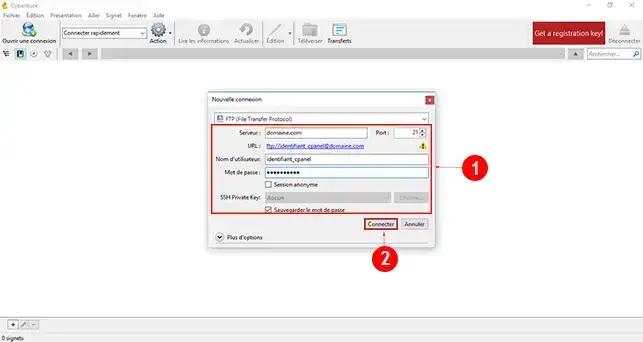
4. Connect to the server by clicking on the"Connect" button (2)
5. If a new window tells you that the connection is not secure, click on the"Continue" tab.
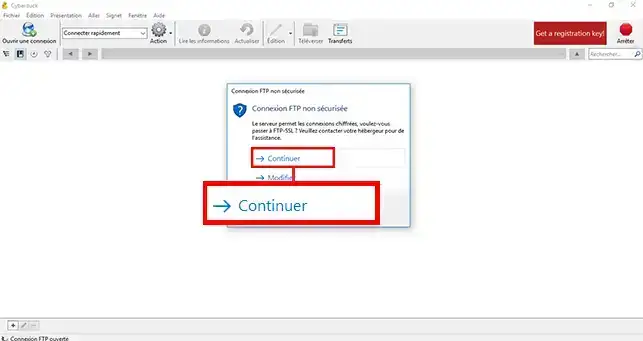
5. Once connected, go to the folder that should contain the site files. (1)
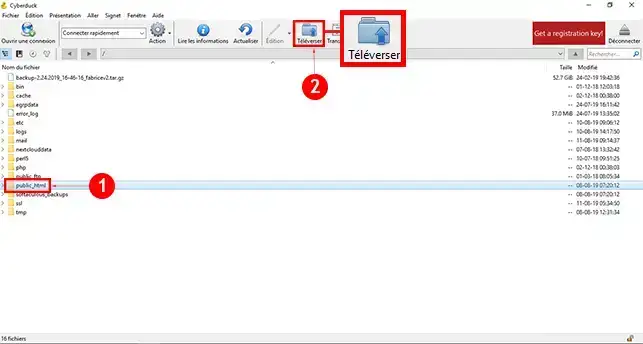
6. Drag the files from your site into the Cyberduck window or click on the"Upload" button (2) and select the files on your computer.
7. Check that all the files have been uploaded before closing the software.
WinSCP is another very popular alternative, especially for Windows.
It can also be used to connect via FTP and manage the files on your web hosting.
1. Launch the software.
2. On the home screen, create a new connection.
3. Enter the parameters
Enter :
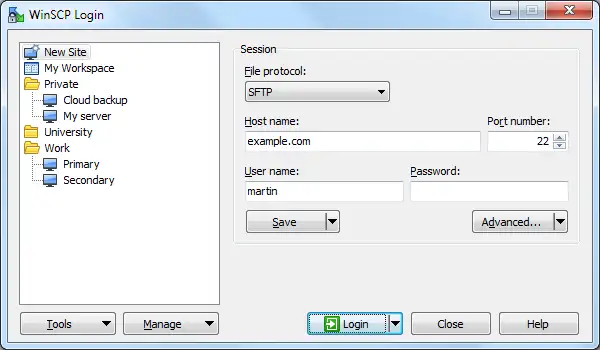
4. Confirm the connection.
5. Understand the interface
As in FileZilla :
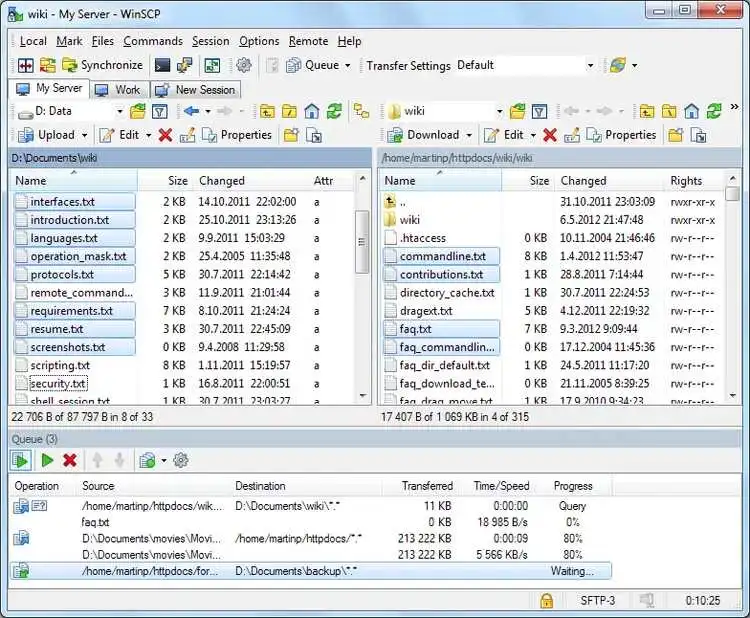
6. Transfer the files from your site to the destination web folder on the server by dragging items from left to right.
7. Wait until the transfer is complete before closing WinSCP.
Once the files have been sent, you need to check that your site can be accessed online.
1. Open your browser
Enter your domain name in your Internet browser.
2. Check the result
Your site should now be displayed.
The expected result is as follows:
3. If your site is still not displayed
Check the following points:
index.html or index.php;4. If the domain has just been configured
If you have just changed the DNS configuration or the attachment of your domain, the display may not be immediate. A propagation delay of a few hours should be observed before checking that everything is working.
First check :
A simple typing error can prevent any connection.
If your domain is still not pointing to the right server
Try connecting with the server's IP address instead of the domain name.
When connecting for the first time, your software may display a warning related to the security certificate.
If the information corresponds to your hosting, you can validate the connection.
In this case :
This problem is often caused by one of the following:
What should you do?
This may be due to :
What to do
In this case, return to the documentation for your panel:
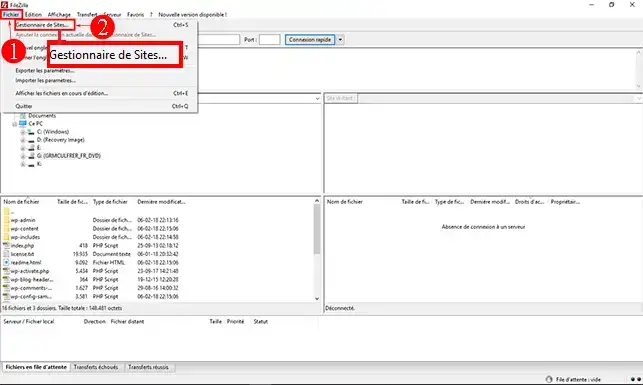
1. Open your FileZilla software, click on the"File" tab and then on"Site Manager".
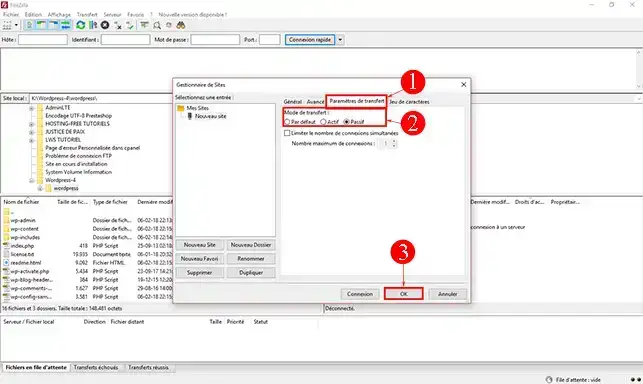
2. Click on the"Transfer parameters" tab, tick the"Passive" box then click on"Ok" to save your choice.
In some cases, you may receive the following error:
Command: MLSD Error:
Connecion timed ut after 20 seconds of inactivity Error: Failed to retrive directory listing
The TLS connection was non-properly terminated
If this is the case, you need to disable TLS on your FileZilla FTP software.
Before going online
After going online
You now know how to publish a website via FTP using dedicated software.
The recommended method is to use FileZilla, but you can also use Cyberduck or WinSCP if you prefer.
In all cases, the principle remains the same:
If your site does not appear immediately, first check the publication folder, the name of the host file and the connection of your domain to the hosting.
Rate this article :
4/5 | 25 opinion
This article was useful to you ?
Yes
No
1mn reading
How do you protect access to a directory on your web hosting?
0mn reading
How do you download or restore a backup of your web files?
0mn reading
How do you back up or restore your emails?
0mn reading
How do I download or restore a Mysql database backup?
Bonjour,
Merci de nous avoir contactés concernant votre problème de formulaire de contact sur votre site web. Il semblerait que vous rencontriez une erreur 403, qui est généralement liée à des problèmes d'autorisation sur votre serveur.
Voici quelques étapes que vous pouvez suivre pour résoudre ce problème :
Si vous avez besoin d'aide supplémentaire pour résoudre ce problème, n'hésitez pas à nous contacter via notre service de support disponible depuis votre espace client. Nous serons heureux de vous aider à résoudre ce problème et à mettre en ligne votre site. (https://aide.lws.fr/a/268)
Bonjour,
Je vous remercie pour votre message.
Ce type de problème nécessite l'ouverture d'une demande d'assistance technique auprès de notre équipe dédiée, pour ce faire, je vous invite à suivre cette documentation afin que nous puissions éventuellement trouver une solution à votre problème.
Dans l'attente, je vous remercie pour votre attention et reste à votre disposition pour toute autre question ou complément d'information.
Cordialement, L'équipe LWS.
Bonjour,
Je vous remercie pour votre message.
Je comprends que vous souhaitiez connaitre les différences entre le gestionnaire de fichier et l'utilisation de FileZilla avec votre serveur FTP.
Il faut savoir que vous pouvez effectuer les mêmes opérations, sauf que le gestionnaire de fichier en PHP dispose de limitation par rapport à FileZilla, notamment sur la taille des fichiers, idéal pour la gestion de masse de fichiers ou le transfert rapide de gros fichiers.
Je vous remercie pour votre attention et reste à votre disposition pour toute autre question ou complément d'information.
Cordialement, L'équipe LWS
Bonjour Monsieur,
Si vous avez perdu les paramètres de connexion pour FileZilla, vous pouvez facilement modifier le mot de passe de votre compte FTP à tout moment via votre espace client. Nous vous invitons à consulter la documentation suivante pour vous guider dans cette procédure : https://aide.lws.fr/a/571
Je vous remercie pour votre attention et reste à votre disposition pour toute autre question ou complément d'information.
Cordialement, L'équipe LWS
 About LWS :
LWS is a 100% French web hosting company that focuses on quality and innovation and offers a responsive and competent technical service at affordable prices.
About LWS :
LWS is a 100% French web hosting company that focuses on quality and innovation and offers a responsive and competent technical service at affordable prices.